
Setting Staff Permissions
REQUIREMENT & PERMISSIONS
User should have Can change permissions permission.
Documentation
Click on STAFF.
Click on the STAFF MEMBER you are setting permissions for.
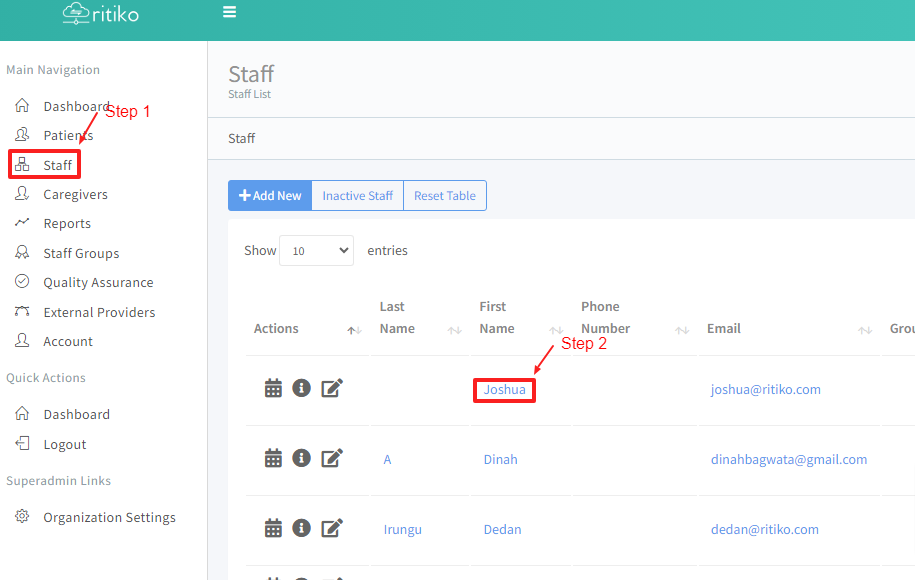
- Scroll down and click PERMISSIONS + GROUPS.
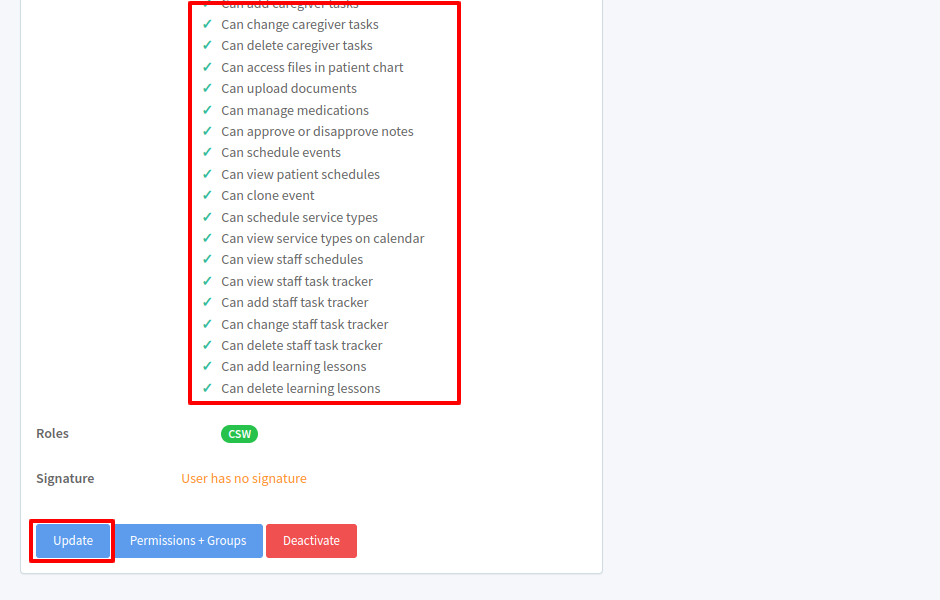
CHECK or UNCHECK any permissions needed.
Click UPDATE.
Permission In Details
- Can send announcements: Allows the user to broadcast messages or notifications to all users within the system.
- Can change permissions and groups: Grants the ability to modify user permissions and assign users to different groups or roles.
- Can create accounts: Enables the creation of new user accounts within the system.
- Can delete accounts: Permits the deletion of existing user accounts from the system.
- Can update account information (including passwords): Allows the user to modify account details, including resetting passwords.
- Can view all staff: Grants access to view information about all staff members.
- Can manage staff groups: Enables the organization and management of staff into different groups or categories.
- Can view reports: Provides access to view various reports generated within the system.
- Can manage external providers: Allows the management of external service providers associated with the system.
- Can add new patients: Permits the addition of new patient records into the system.
- Can view inactive patients: Grants access to view patients who are no longer active.
- Can delete patients: Allows the deletion of patient records from the system.
- Can view all patients: Provides access to view information about all patients.
- Can update patients: Enables the modification of patient information.
- Can view patient task tracker: Grants access to view the task tracker for patients, which includes tasks assigned to them.
- Can add patient task tracker: Allows the user to add new tasks to the patient task tracker.
- Can change patient task tracker: Permits the modification of tasks within the patient task tracker.
- Can delete patient task tracker: Enables the deletion of tasks from the patient task tracker.
- Can view caregiver tasks: Grants access to view tasks assigned to caregivers.
- Can add caregiver tasks: Allows the user to assign new tasks to caregivers.
- Can change caregiver tasks: Permits the modification of tasks assigned to caregivers.
- Can delete caregiver tasks: Enables the deletion of tasks assigned to caregivers.
- Can access files in patient chart: Grants the ability to view files stored in a patient's chart.
- Can upload documents: Allows the user to upload documents to the system.
- Can manage medications: Enables the management of patient medications, including adding, updating, and deleting medication records.
- Can approve or disapprove notes: Permits the approval or disapproval of notes or entries made within the system.
- Can schedule events: Allows the user to create and schedule events within the system.
- Can view patient schedules: Grants access to view the schedules of patients.
- Can clone event: Enables the duplication of existing events to create similar ones.
- Can schedule service types: Allows the scheduling of different types of services provided to patients.
- Can view service types on calendar: Provides the ability to see various service types on the calendar.
- Can view staff schedules: Grants access to view the schedules of staff members.
- Can view staff task tracker: Allows the user to view the task tracker for staff, which includes tasks assigned to them.
- Can add staff task tracker: Enables the addition of new tasks to the staff task tracker.
- Can change staff task tracker: Permits the modification of tasks within the staff task tracker.
- Can delete staff task tracker: Allows the deletion of tasks from the staff task tracker.
- Can add learning lessons: Enables the user to create and add new learning lessons to the system.
- Can delete learning lessons: Permits the deletion of existing learning lessons from the system.